

Disclosure: this article contains an affiliate link. If you buy through it, we may earn a commission.
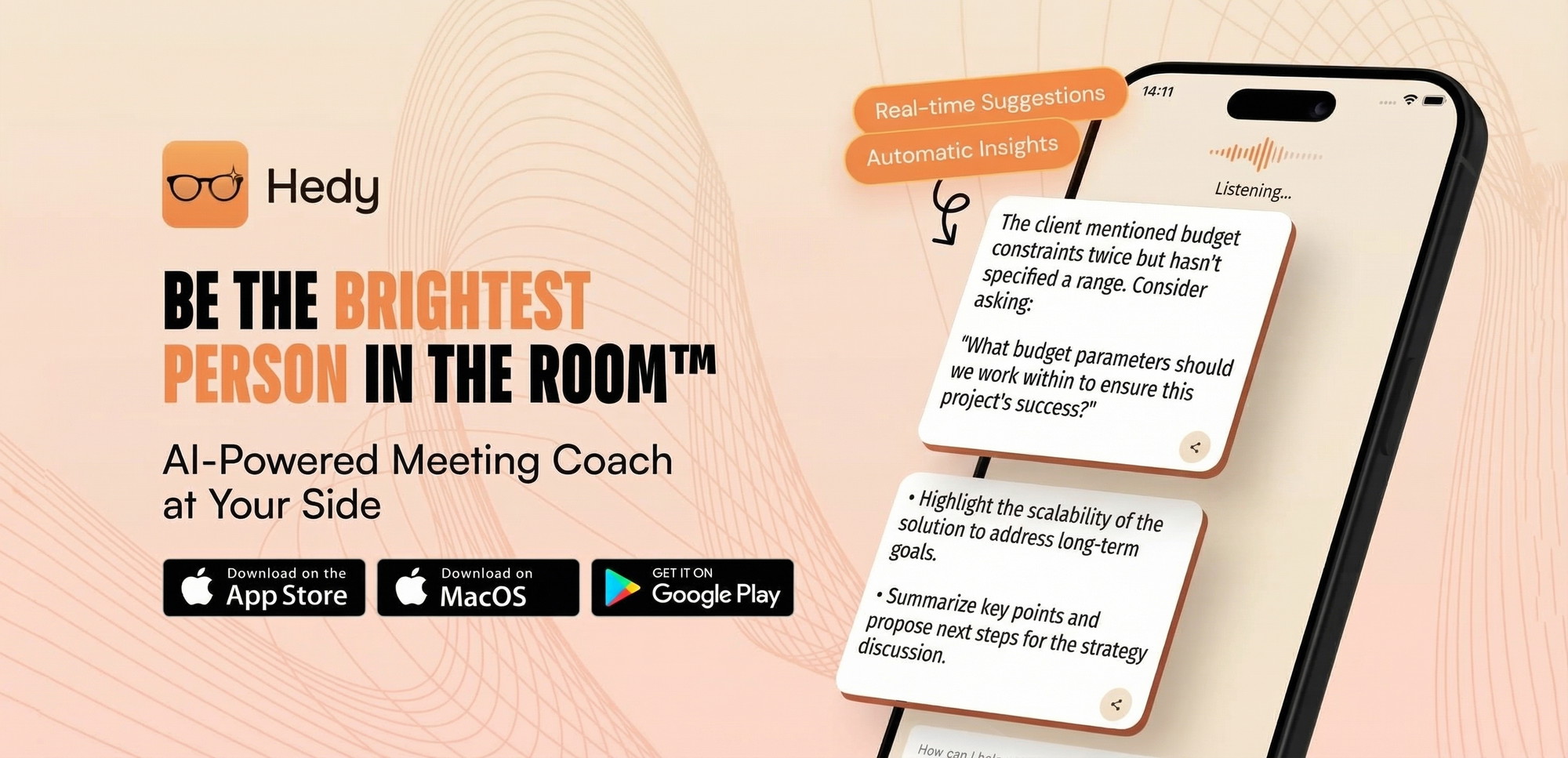
To learn how to use Hedy AI, integrate the assistant into your device settings to enable automatic coaching and prep notes during professional conversations. This tool helps you navigate complex meetings by providing real-time suggestions and cross-session chat features across iOS, Android, Mac, Windows, and Apple Watch.
How to Use Hedy AI: Setting Up Your Assistant

Getting started with this tool requires a simple configuration to ensure it tracks the right information for your specific work needs. Follow these steps to begin using the software effectively for your daily professional tasks.
- Install the application: Download the software onto your preferred device, such as your smartphone or computer, and complete the initial account setup.
- Grant necessary permissions: Enable the microphone and notification settings so the assistant can record, analyze, and provide live feedback during your calls.
- Configure your session preferences: Select your primary language from the list of over 30 options to ensure the transcription and coaching features are accurate for your region.
- Review your automatic prep notes: Check the dashboard before your scheduled meetings to see the summaries and talking points the system has generated for you.
- Monitor live coaching suggestions: Watch for the prompts that appear on your screen while you’re talking, which offer advice on how to steer the conversation toward your goals.
- Access cross-session chat: Use the chat interface after your meetings to ask questions about previous discussions and link information across different sessions.
Tip: Start by using the assistant in low-stakes meetings to get comfortable with how the prompts appear on your screen before relying on it during critical professional negotiations.
How Long Does It Take to Master?
Proficiency depends on your AI familiarity and meeting schedule. Most users find they can navigate the basic interface within a few minutes, but optimizing the coaching suggestions takes more practice.
| Task Level | Estimated Time | Key Focus |
|---|---|---|
| Initial Setup | 5–10 Minutes | Account creation and permissions |
| Learning Features | 30–60 Minutes | Testing prep notes and chat |
| Full Integration | 1–2 Weeks | Refinement of coaching prompts |
Is It Safe to Use for Sensitive Work?

Safety depends on your company’s privacy policies and industry compliance standards. While the software provides helpful coaching, you must ensure that your use of AI notetakers aligns with the Federal Trade Commission’s guidance on business privacy and your organization’s internal security protocols. Check if your employer allows third-party AI tools for sensitive information.
Choosing the Right Features for Your Needs
This assistant offers several distinct features for managing your professional life. Understanding these tools helps you avoid common mistakes, such as ignoring the coaching prompts or failing to review prep notes until it’s too late.
Proactive AI Coaching
The coaching feature provides live feedback during your conversations to help you maintain confidence. This is useful if you often struggle with pacing or need reminders to cover specific topics during a presentation. You can adjust the frequency of prompts in the settings menu.
Automatic Prep Notes
Before you enter a meeting, the system generates notes based on your past conversations and current agenda. This feature is designed to save you time on research and preparation. It is highly effective for busy professionals who handle multiple clients throughout the day, as it keeps key details organized and accessible without manual effort.
Cross-Session Chat
This function allows you to retrieve information from previous meetings by asking questions in a chat interface. Use this to connect conversations, but rely on your own judgment.
Mistakes to Avoid
Don’t treat the assistant as a perfect record-keeper. While it’s a powerful tool, it doesn’t replace human oversight. Always verify AI-generated summaries, dates, and commitments. Avoid relying solely on prep notes without adding your own context. Finally, don’t forget to check your language settings periodically, as using the wrong setting can significantly degrade the accuracy of the transcription and coaching features.
Learn more about Hedy AI.
Related guides
Frequently Asked Questions

Can I use this on multiple devices at the same time?
Yes, you can use the assistant across various platforms including iOS, Android, Mac, Windows, and Apple Watch. It’s designed to sync your data so that your prep notes and chat history remain consistent regardless of which device you use to join your meetings.
Does it support my local language?
The software supports over 30 languages. You should check the language settings in your profile menu to ensure the correct one is selected before you begin your first session to maintain the highest level of accuracy in transcription.
Is there a limit to how many sessions I can store?
The system includes lifetime access for your professional archives. While there’s no specific limit mentioned in the core features, you should regularly clear out old or irrelevant notes to keep your workspace organized and easy to navigate when searching for specific details.
Can the AI join meetings automatically?
The assistant works by integrating with your device to provide coaching and notes as you speak. It acts as a real-time partner in your conversations, but you must ensure the application is active and the microphone is enabled on your device for it to capture and process the audio input.
Is the software suitable for beginners?
Yes, the interface is designed to be accessible for those who are new to AI notetakers. The onboarding process guides you through your first meetings without requiring technical expertise.
How do I ensure my privacy?
Review your device privacy settings and employer policy before connecting the software to professional accounts. The assistant processes conversation data to provide coaching features, so understanding data management is a standard step for business users.
Why does my assistant struggle to provide relevant topics during a call?
This issue usually occurs when background noise is high or the microphone is positioned too far from the speaker. Ensure you’re in a quiet environment and your microphone input is set correctly.
Can I customize the automatic suggestions to fit my industry?
While the software provides proactive coaching based on the conversation, it doesn’t currently offer a way to upload custom industry-specific dictionaries or proprietary terminology. You should expect the AI to provide general professional guidance and topic tracking. If your work involves highly technical jargon, you’ll need to manually verify the accuracy of the generated notes, as the system may occasionally misinterpret specialized terms that fall outside its core training data.
How do I handle meeting interruptions with the live coaching?
If the live coaching prompts appear at an inconvenient moment, you can simply ignore them or dismiss the notification on your screen. If you find the visual distractions too frequent, check the application settings for options to adjust the sensitivity of the coaching triggers.
What should I do if the synchronization between devices feels slow?
Data synchronization requires a stable internet connection across all your devices. A quick refresh or restarting the connection usually resolves these sync delays.
Are there specific hardware requirements for the Windows beta version?
The Windows version is currently in beta, which may cause performance differences compared to stable versions. Verify that your computer meets standard operating system requirements and that audio drivers are updated.
| Feature Type | Best Use Case | Performance Note |
|---|---|---|
| Automatic Suggestions | Real-time negotiation | Requires clear audio input |
| Cross-Session Chat | Long-term project tracking | Depends on historical data |
| Prep Notes | Meeting readiness | Best generated 1 hour before |
| Language Support | Multi-region teams | 30+ options available |
What happens to my notes if I change my account information?
Your notes and history are tied to your account profile rather than a specific device. If you migrate to a new phone, your historical data carries over automatically when you sign in with your credentials. Ensure you aren’t using a second account if your history doesn’t appear.
Can I share my prep notes with team members?
The current feature set is designed for your personal use, meaning notes are intended for your own reference. To share information, copy relevant summaries from the application into your preferred collaboration software. This allows you to maintain control over which details are shared with your colleagues.
How does the Apple Watch integration work?
The watch version acts as a secondary display for notifications and coaching prompts during meetings. This allows you to receive guidance without looking at your phone or computer. Configure your watch notifications to ensure these prompts are delivered quietly so you can stay focused on your conversation.
Why do some sessions show less detail than others?
The detail in your notes depends on audio quality and the length of the discussion. If a meeting is short or involves many speakers, the AI may struggle to generate a comprehensive summary.
How do I delete old sessions I no longer need?
You can manage your session history by selecting specific meetings to remove from the main dashboard. Note that deleted sessions can’t be used to inform future coaching suggestions.
Is the AI coaching intended for public speaking?
The tool can provide value during formal presentations if your device is positioned to capture your voice clearly. Ensure your microphone is placed away from ambient noise, as poor audio capture may limit the accuracy of suggestions.
Final Thoughts
Once you’ve set up your preferences, try using the assistant during your next low-stakes meeting to get comfortable with the interface. You’ll find that it doesn’t just save time; it helps you stay focused on the conversation. Don’t hesitate to adjust the sensitivity settings if you’d like more or less feedback.