

If you’re searching for the best alternatives to Edworking, you’re in the right place. Many tools offer similar features for team collaboration.
Edworking is an all-in-one platform designed to streamline team collaboration. It combines task management, file sharing, video calls, and chat functionalities in one place. While Edworking is a great tool, it might not fit everyone’s needs perfectly. That’s why exploring other options can be beneficial. Whether you need more integrations, different pricing plans, or specific features, there’s likely an alternative that suits your team better. Let’s dive into some top alternatives to help you find the perfect fit for your collaboration needs. For more information on Edworking, you can check their official page.
Introduction To Remote Collaboration Tools
Remote collaboration tools have become essential for modern workplaces. They help teams stay connected and productive, even when working from different locations. In this section, we explore the rise of remote work and the importance of efficient collaboration tools.
The Rise Of Remote Work
Remote work has seen a significant increase in recent years. Advances in technology and changes in work culture have made it possible for more people to work from home or other remote locations. This shift has highlighted the need for effective tools to facilitate communication and collaboration.
Statistics show that remote work can lead to higher productivity and job satisfaction. Many companies now offer remote work options as a standard part of their employment packages. This trend is expected to continue growing, making remote collaboration tools even more important.
Importance Of Efficient Collaboration Tools
Efficient collaboration tools are crucial for the success of remote teams. They ensure that team members can communicate, share files, and manage tasks seamlessly. One such tool is Edworking, an all-in-one platform designed to streamline team collaboration.
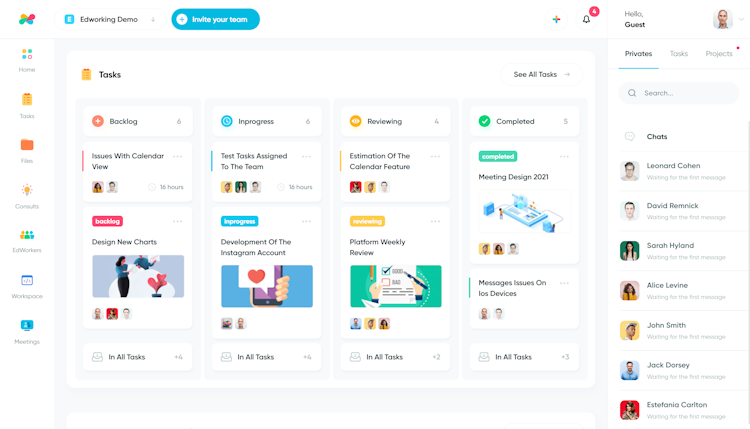
Edworking integrates task management, file sharing, video calls, and chat functionalities into a single workspace. This eliminates the need to switch between multiple apps, saving time and reducing confusion. Key features of Edworking include:
- Task Management: Customizable Kanban board for creating and assigning tasks, real-time notifications, and task prioritization.
- File Sharing: Instant collaboration on files, reducing the need for back-and-forth communication.
- Communication: Real-time group and private chats, HD video calls hosted within the platform.
- Workflow Customization: Customizable workflows for different teams, real-time tracking of task progress.
- Integrations: API, G-Suite, Google Calendar, Pabbly Connect, Zapier.
- Compliance and AI: GDPR-compliant, AI features for enhanced productivity.
These features make Edworking a powerful tool for remote teams. It centralizes collaboration, enhances productivity, and ensures timely project completion.
| Plan | Price | Details |
|---|---|---|
| Plan 1 | $69 (one-time payment) |
|
| Plan 2 | $138 (one-time payment) |
|
| Plan 3 | $207 (one-time payment) |
|
Edworking also offers a 60-day money-back guarantee. Customers can try Edworking for 2 months and get a full refund if not satisfied. This provides peace of mind and ensures that users find the right tool for their needs.

Credit: www.g2.com
Key Features To Look For In Remote Collaboration Tools
In today’s fast-paced work environment, remote collaboration tools are essential for productive teamwork. Selecting the right tool can significantly enhance your team’s efficiency. Here are the key features to consider:
Seamless Communication
Effective communication is the backbone of any successful remote team. Look for tools that offer real-time group and private chats. Features like HD video calls hosted within the platform ensure clear and productive discussions. This eliminates the need for multiple communication apps, streamlining the process.
File Sharing And Management
File sharing should be quick and easy. An ideal tool allows instant collaboration on files, reducing back-and-forth communication. Features like unlimited storage (e.g., 1GB per file) and easy access to docs and other files are essential for efficient workflow.
Project Management Capabilities
Managing tasks and projects is crucial for timely completion. Look for customizable Kanban boards for creating and assigning tasks. Real-time notifications and task prioritization help keep everyone on track. Customizable workflows for different teams and real-time tracking of task progress ensure that projects are completed on time.
Security And Privacy
Security and privacy are non-negotiable. Ensure the tool complies with GDPR and other relevant regulations. Features like secure file sharing and robust privacy settings protect your team’s data. Tools with AI capabilities for enhanced productivity should also adhere to strict compliance standards.
| Feature | Description |
|---|---|
| Real-Time Communication | Group and private chats, HD video calls |
| File Sharing | Instant collaboration, unlimited storage (1GB per file) |
| Task Management | Customizable Kanban board, real-time notifications |
| Security | GDPR compliance, secure file sharing |
Top 10 Edworking Alternatives For Remote Collaboration
Remote collaboration tools are essential for teams to stay connected and productive. While Edworking offers a comprehensive solution, other tools might better suit your needs. Below are the top 10 alternatives to Edworking, each with unique features to enhance your remote work experience.
1. Slack
Slack is a popular communication tool for teams. It offers channels for group discussions, direct messaging, and integrations with various apps. Key Features include:
- Real-time messaging
- File sharing
- Integration with third-party apps
2. Microsoft Teams
Microsoft Teams combines chat, video conferencing, and file storage. It’s ideal for organizations already using Microsoft 365. Key Features include:
- HD video calls
- Screen sharing
- Integration with Microsoft Office
3. Trello
Trello uses boards, lists, and cards to manage tasks and projects. It’s a visual tool that helps teams stay organized. Key Features include:
- Customizable boards
- Drag-and-drop interface
- Integration with third-party apps
4. Asana
Asana helps teams coordinate work and track progress. It provides a clear overview of ongoing tasks and deadlines. Key Features include:
- Task lists and boards
- Project timelines
- Custom fields and templates
5. Zoom
Zoom is a leading video conferencing tool. It supports large meetings, webinars, and breakout rooms. Key Features include:
- HD video and audio
- Screen sharing
- Recording capabilities
6. Google Workspace
Google Workspace integrates email, calendar, and cloud storage. It’s perfect for teams using Google’s suite of tools. Key Features include:
- Gmail and Google Calendar
- Google Drive and Docs
- Video calls via Google Meet
7. Monday.com
Monday.com is a work operating system for managing tasks, projects, and workflows. It’s highly customizable. Key Features include:
- Visual project tracking
- Automations
- Integration with multiple apps
8. Basecamp
Basecamp focuses on simplicity and ease of use. It combines project management and team communication. Key Features include:
- Message boards
- To-do lists
- File storage
9. Notion
Notion is an all-in-one workspace for notes, tasks, and databases. It offers a flexible and customizable environment. Key Features include:
- Rich-text editor
- Database functionality
- Templates and integrations
10. Clickup
ClickUp is a productivity platform with features for task management, time tracking, and goal setting. Key Features include:
- Customizable views
- Time tracking
- Goal setting and tracking
| Tool | Key Features |
|---|---|
| Slack | Real-time messaging, File sharing, Integration with third-party apps |
| Microsoft Teams | HD video calls, Screen sharing, Integration with Microsoft Office |
| Trello | Customizable boards, Drag-and-drop interface, Integration with third-party apps |
| Asana | Task lists and boards, Project timelines, Custom fields and templates |
| Zoom | HD video and audio, Screen sharing, Recording capabilities |
| Google Workspace | Gmail and Google Calendar, Google Drive and Docs, Video calls via Google Meet |
| Monday.com | Visual project tracking, Automations, Integration with multiple apps |
| Basecamp | Message boards, To-do lists, File storage |
| Notion | Rich-text editor, Database functionality, Templates and integrations |
| ClickUp | Customizable views, Time tracking, Goal setting and tracking |
1. Slack
Slack is a popular collaboration tool designed to streamline team communication. It offers chat functionalities, file sharing, and integrations with other tools, making it an alternative to Edworking.
Unique Features
Slack comes with several unique features that set it apart:
- Channels: Organize conversations into channels for different topics, projects, or teams.
- Direct Messages: Send private messages to team members for one-on-one conversations.
- Integrations: Connect with over 2,000 apps like Google Drive, Trello, and Zoom.
- File Sharing: Share documents, images, and other files directly within conversations.
- Search Functionality: Easily search through messages, files, and channels to find important information.
- Bots and Automation: Use bots to automate routine tasks and workflows.
Pricing And Affordability
Slack offers several pricing plans to fit different needs:
| Plan | Cost | Features |
|---|---|---|
| Free | $0 | Access to 10,000 of your team’s most recent messages, 10 integrations with other apps, 1:1 video calls |
| Pro | $6.67/user/month | Unlimited message history, unlimited integrations, group video calls with screen sharing, 24/7 support |
| Business+ | $12.50/user/month | Advanced identity management, compliance requirements, dedicated support |
| Enterprise Grid | Custom Pricing | Enterprise-grade security and compliance, unlimited workspaces, tailored support |
Pros And Cons
Here are some pros and cons of using Slack:
Pros:
- Highly customizable with numerous integrations.
- User-friendly interface and easy to set up.
- Strong search capabilities.
- Frequent updates and new features.
Cons:
- Can become cluttered with high volume of messages.
- Higher cost for advanced features.
- Limited functionality in the free plan.
Ideal Use Cases
Slack is ideal for various use cases, including:
- Small to medium-sized businesses needing efficient team communication.
- Remote teams requiring real-time collaboration and file sharing.
- Organizations looking for integrations with multiple productivity tools.
- Teams that prioritize seamless communication and quick access to information.
2. Microsoft Teams
Microsoft Teams is a leading collaboration platform designed to enhance team productivity and streamline communication. It integrates chat, video calls, file sharing, and task management into one unified workspace. Teams is widely adopted by organizations for its robust features and seamless integration with other Microsoft products.
Unique Features
- Integrated Office 365: Direct access to Word, Excel, PowerPoint, and OneNote within the app.
- Channel-Based Communication: Organized conversations by topics, projects, or departments.
- HD Video Conferencing: High-quality video calls with screen sharing options.
- Third-Party App Integrations: Supports over 700 apps including Trello, Asana, and GitHub.
- Security and Compliance: Advanced security features and compliance with various regulations.
Pricing And Affordability
| Plan | Price | Features |
|---|---|---|
| Free | $0 | Limited features, 2GB/user storage, 5GB/team storage |
| Microsoft 365 Business Basic | $5/user/month | Web and mobile versions of Office apps, 1TB storage |
| Microsoft 365 Business Standard | $12.50/user/month | All Business Basic features, desktop apps, advanced security |
| Office 365 E3 | $20/user/month | All Business Standard features, compliance tools, analytics |
Pros And Cons
- Pros:
- Seamless integration with Microsoft Office Suite.
- Robust security and compliance features.
- Highly customizable with numerous third-party integrations.
- Cons:
- Steep learning curve for new users.
- Can be resource-heavy on older devices.
- Some advanced features require higher-priced plans.
Ideal Use Cases
- Large enterprises needing advanced security and compliance.
- Organizations already using Microsoft Office products.
- Teams requiring robust video conferencing and collaboration tools.
- Businesses looking to centralize their communication and file sharing.
Credit: www.getapp.com
3. Zoom
Zoom is a popular video conferencing tool used globally for virtual meetings. It offers robust features that make remote work and online collaboration seamless. Here, we’ll explore its unique features, pricing, pros and cons, and ideal use cases.
Unique Features
Zoom is packed with features designed to enhance virtual communication and collaboration:
- HD Video and Audio: High-quality video and audio for clear communication.
- Screen Sharing: Allows participants to share their screens during meetings.
- Breakout Rooms: Facilitates group discussions by dividing participants into smaller groups.
- Recording and Transcription: Record meetings and get automatic transcriptions.
- Virtual Backgrounds: Customize your background during video calls.
- Webinars: Host large-scale online events with up to 10,000 attendees.
- Chat Functionality: Instant messaging before, during, and after meetings.
Pricing And Affordability
Zoom offers several pricing plans to fit different needs:
| Plan | Price | Features |
|---|---|---|
| Basic | Free | Up to 100 participants, 40-minute limit on group meetings, Unlimited 1:1 meetings |
| Pro | $14.99/month | Up to 100 participants, 24-hour meeting duration, 1GB cloud recording |
| Business | $19.99/month | Up to 300 participants, Dedicated phone support, Admin dashboard |
| Enterprise | $19.99/month | Up to 500 participants, Unlimited cloud storage, Executive business reviews |
Pros And Cons
Zoom has its strengths and weaknesses:
- Pros:
- User-friendly interface
- High-quality video and audio
- Wide range of features
- Scalable for large meetings
- Cons:
- Security concerns
- Free plan limitations
- Occasional connectivity issues
Ideal Use Cases
Zoom is versatile and suitable for various use cases:
- Remote Work: Ideal for team meetings and project collaborations.
- Online Education: Great for virtual classrooms and training sessions.
- Webinars: Host large online events and presentations.
- Social Gatherings: Connect with family and friends from different locations.
4. Asana
Asana is a popular project management tool often compared to Edworking. It helps teams manage tasks, projects, and workflows efficiently. Let’s explore its unique features, pricing, pros and cons, and ideal use cases.
Unique Features
- Task Management: Create tasks, assign them, set due dates, and track progress.
- Project Views: Offers list, board, calendar, and timeline views.
- Automation: Automate routine tasks to save time.
- Integrations: Connects with over 100 apps including Slack, Gmail, and Microsoft Teams.
- Reporting: Real-time reporting and advanced search capabilities.
Pricing And Affordability
| Plan | Price | Features |
|---|---|---|
| Basic | Free | Task management, list view, due dates, and project collaboration. |
| Premium | $10.99/user/month | Timeline view, automation, advanced search, and reporting. |
| Business | $24.99/user/month | Advanced integrations, workload management, and custom rules builder. |
Pros And Cons
- Pros:
- Easy to use interface.
- Multiple project views.
- Strong integration capabilities.
- Robust reporting tools.
- Cons:
- Premium features can be expensive.
- Free plan has limited functionalities.
- May be overwhelming for small teams.
Ideal Use Cases
- Large Teams: Ideal for teams needing advanced project management features.
- Complex Projects: Suitable for projects with multiple tasks and dependencies.
- Businesses: Great for businesses requiring detailed reporting and automation.
5. Trello
Trello is a popular project management tool known for its simplicity and flexibility. It uses boards, lists, and cards to help teams organize tasks and projects visually. Below, we explore Trello’s unique features, pricing, pros and cons, and ideal use cases.
Unique Features
- Boards, Lists, and Cards: Trello’s core structure revolves around these elements, allowing teams to visually manage tasks.
- Butler Automation: Automate repetitive tasks with Trello’s built-in automation tool, Butler.
- Integrations: Connect with other tools like Slack, Google Drive, and Jira.
- Customizable Workflows: Adapt Trello to fit your team’s specific needs through Power-Ups and custom fields.
Pricing And Affordability
| Plan | Cost | Features |
|---|---|---|
| Free | $0 | Unlimited personal boards, cards, lists, and 1 Power-Up per board |
| Standard | $5 per user/month | Unlimited boards, advanced checklists, custom fields, and 1,000 automation commands/month |
| Premium | $10 per user/month | Dashboard view, timeline view, workspace table view, calendar view, and more |
| Enterprise | Custom Pricing | Advanced security features, centralized admin controls, unlimited Power-Ups, and more |
Pros And Cons
- Pros:
- User-friendly interface
- Highly customizable with Power-Ups
- Strong integration capabilities
- Free plan available
- Cons:
- Limited features in the free plan
- Advanced features can be costly
- May become cluttered for large projects
Ideal Use Cases
- Small Teams: Trello is excellent for small teams needing a simple, visual project management tool.
- Startups: Ideal for startups requiring flexibility and easy-to-use task management.
- Personal Projects: Great for individuals managing personal tasks and to-dos.
- Agile Workflows: Perfect for teams adopting Agile methodologies.
6. Monday.com
Monday.com is a popular project management tool that serves as an alternative to Edworking. It offers a wide range of features to help teams collaborate and manage projects efficiently. Let’s explore the unique features, pricing, pros and cons, and ideal use cases of Monday.com.
Unique Features
Monday.com provides a variety of unique features that enhance team collaboration and productivity:
- Customizable Workflows: Create workflows tailored to your team’s needs.
- Visual Project Management: Use boards, timelines, and calendars to visualize tasks.
- Automation: Automate repetitive tasks to save time.
- Integrations: Integrate with tools like Slack, Google Drive, and Dropbox.
- Real-time Collaboration: Collaborate in real-time with your team.
Pricing And Affordability
Monday.com offers several pricing plans to accommodate different team sizes and needs:
| Plan | Monthly Cost (per user) | Features |
|---|---|---|
| Basic | $8 | Unlimited boards, over 200 templates, 24/7 support |
| Standard | $10 | All Basic features, timeline & calendar views, integrations |
| Pro | $16 | All Standard features, time tracking, formula column |
| Enterprise | Contact for pricing | All Pro features, enterprise-grade security, advanced reporting |
Pros And Cons
Monday.com has its strengths and weaknesses. Here is a breakdown:
Pros:
- Highly customizable workflows
- Intuitive and user-friendly interface
- Strong integration capabilities
- Robust automation features
Cons:
- Can be expensive for small teams
- Some users find it overwhelming due to the number of features
Ideal Use Cases
Monday.com is well-suited for a variety of use cases:
- Project Management: Ideal for managing complex projects with multiple stakeholders.
- Marketing Teams: Helps coordinate campaigns and track marketing activities.
- IT and Development: Useful for tracking development cycles and bug fixes.
- HR Teams: Manages recruitment processes and employee onboarding.

Credit: edworking.com
7. Google Workspace
Google Workspace is a robust alternative to Edworking, offering a suite of productivity tools designed to enhance team collaboration and streamline workflows. Let’s explore its unique features, pricing, pros and cons, and ideal use cases.
Unique Features
- Real-time Collaboration: Google Docs, Sheets, and Slides allow multiple users to edit documents simultaneously.
- Cloud Storage: Google Drive provides ample storage for files, ensuring easy access and sharing.
- Email Hosting: Professional email addresses with Gmail, including advanced spam filters and security features.
- Communication Tools: Google Meet for video conferencing and Google Chat for instant messaging.
- Calendar Integration: Google Calendar helps in scheduling and managing events with ease.
- Security and Compliance: Advanced security controls and compliance certifications like GDPR, HIPAA.
Pricing And Affordability
| Plan | Price | Features |
|---|---|---|
| Business Starter | $6/user/month | 30 GB storage per user, custom email, standard support |
| Business Standard | $12/user/month | 2 TB storage per user, advanced meeting features, enhanced support |
| Business Plus | $18/user/month | 5 TB storage per user, advanced security, compliance tools |
| Enterprise | Contact Sales | Unlimited storage, premium support, advanced compliance & security |
Pros And Cons
- Pros:
- Seamless integration with other Google services.
- Real-time collaboration and file sharing.
- High-level security features and compliance.
- Cons:
- Recurring subscription costs.
- Complexity for new users.
- Limited offline functionality.
Ideal Use Cases
- Small to Medium Businesses: Ideal for businesses seeking a comprehensive suite of tools for collaboration and productivity.
- Remote Teams: Perfect for teams working remotely, providing essential tools for communication and file sharing.
- Education Sector: Suitable for educational institutions needing a reliable platform for e-learning and student collaboration.
- Project Management: Effective for managing projects with features like shared calendars and task lists.
8. Basecamp
Basecamp is a popular project management tool that offers a comprehensive platform for team collaboration. It is known for its user-friendly interface and robust features that cater to various project management needs.
Unique Features
Basecamp stands out with its array of unique features designed to enhance productivity and streamline team collaboration:
- To-Do Lists: Create and assign tasks, set deadlines, and track progress.
- Message Boards: Facilitate discussions and keep everyone in the loop.
- Schedules: Calendar view to track deadlines and milestones.
- File Storage: Upload and share documents and files within the platform.
- Real-Time Group Chat: Communicate instantly with team members.
- Client Access: Share projects and progress with clients, keeping them informed.
Pricing And Affordability
Basecamp offers straightforward pricing plans, making it accessible for various business sizes:
| Plan | Cost | Features |
|---|---|---|
| Personal | Free | Up to 3 projects, 20 users, 1GB storage |
| Business | $99/month | Unlimited projects, unlimited users, 500GB storage, advanced features |
Pros And Cons
Basecamp, like any tool, has its strengths and weaknesses:
Pros:
- User-friendly interface
- Comprehensive feature set
- Flat-rate pricing for businesses
- Client access for transparency
Cons:
- Limited customization options
- May be expensive for small teams
- Lacks advanced project tracking features
Ideal Use Cases
Basecamp is ideal for various scenarios, making it a versatile choice:
- Small to medium-sized businesses needing a comprehensive project management tool.
- Teams requiring a centralized communication and collaboration platform.
- Businesses seeking client-facing project management capabilities.
9. Clickup
ClickUp is a popular project management tool known for its flexibility and extensive features. Many teams use it to manage tasks, collaborate, and track progress. This section will explore ClickUp’s unique features, pricing, pros and cons, and ideal use cases.
Unique Features
ClickUp offers a range of features that set it apart:
- Custom Views: Choose from List, Board, Calendar, and other views to manage tasks.
- Goal Tracking: Set, track, and manage team goals within the platform.
- Time Tracking: Built-in time tracking to monitor how long tasks take.
- Docs and Wikis: Create and share documents and wikis within the app.
- Integrations: Connect with popular tools like Slack, Google Drive, and Trello.
Pricing And Affordability
ClickUp offers several pricing plans to suit different needs:
| Plan | Cost | Details |
|---|---|---|
| Free | $0 | Unlimited tasks and users, 100MB storage |
| Unlimited | $5 per user/month | Unlimited storage, integrations, dashboards |
| Business | $12 per user/month | Advanced time tracking, goal folders, custom exporting |
| Enterprise | Custom pricing | Advanced features, dedicated support, custom permissions |
Pros And Cons
Understanding the pros and cons of ClickUp can help you decide if it fits your needs:
Pros
- Highly customizable with various views and workflows.
- Robust free plan with many features.
- Supports a wide range of integrations.
Cons
- Can be overwhelming for new users due to its many features.
- Mobile app lacks some functionalities available in the desktop version.
Ideal Use Cases
ClickUp is versatile and fits various use cases:
- Project Management: Ideal for teams managing complex projects with many tasks.
- Remote Work: Great for teams working remotely, offering collaboration tools.
- Goal Tracking: Useful for teams who need to set and track goals.
- Document Collaboration: Perfect for creating and sharing documents within the team.
10. Miro
Miro is a popular visual collaboration platform designed to enhance team productivity and creativity. It offers a versatile online whiteboard for distributed teams to brainstorm, plan, and manage agile workflows. Let’s explore its unique features, pricing, pros and cons, and ideal use cases.
Unique Features
Miro stands out with its unique features that cater to various collaborative needs:
- Online Whiteboard: A flexible canvas that supports brainstorming, wireframing, and mind mapping.
- Pre-built Templates: Ready-made templates for project planning, design sprints, and customer journey mapping.
- Integrations: Seamless integration with tools like Slack, Jira, Trello, and Google Drive.
- Collaboration Tools: Real-time collaboration with features like sticky notes, comments, and voting.
- Presentation Mode: Easily present your boards and ideas to stakeholders.
Pricing And Affordability
Miro offers several pricing plans to suit different team sizes and needs:
| Plan | Features | Price |
|---|---|---|
| Free | 3 editable boards, core integrations, unlimited team members | $0 |
| Team | Unlimited boards, advanced collaboration tools, integrations | $8/month per user |
| Business | All Team features, single sign-on (SSO), compliance & admin controls | $16/month per user |
| Enterprise | Customizable security, dedicated success manager, advanced user management | Custom pricing |
Pros And Cons
Understanding the pros and cons of Miro can help you make an informed decision:
- Pros:
- Intuitive and user-friendly interface
- Robust set of features for various use cases
- Real-time collaboration and feedback
- Extensive library of templates
- Cons:
- Can be expensive for larger teams
- Learning curve for advanced features
- Occasional performance issues with large boards
Ideal Use Cases
Miro is ideal for a variety of use cases:
- Remote Brainstorming: Facilitate remote brainstorming sessions with your team.
- Agile Workflows: Manage agile workflows and sprint planning.
- Project Planning: Create detailed project plans and roadmaps.
- Design Thinking: Use design thinking methodologies to solve problems creatively.
- Customer Journey Mapping: Visualize and map out customer journeys and experiences.
Miro’s versatility and feature-rich platform make it a valuable tool for teams aiming to enhance collaboration and productivity.
How To Choose The Right Tool For Your Team
Choosing the right collaboration tool for your team can be challenging. Here are some important factors to consider when selecting the best tool for your needs.
Assessing Team Needs
Understanding your team’s requirements is crucial. Create a list of features that are essential for your team to work efficiently. For example:
- Task Management
- File Sharing
- Real-time Communication (Chat and Video Calls)
- Workflow Customization
- Integrations with other tools
Evaluate how each feature will benefit your team. For instance, Edworking offers a customizable Kanban board, real-time notifications, and task prioritization. These features can significantly boost productivity and streamline workflows.
Comparing Features And Pricing
Compare the features and pricing of different tools. Here’s a comparison table for Edworking’s plans:
| Plan | Price (One-time Payment) | Member Accounts | Storage | Video Calls | Docs |
|---|---|---|---|---|---|
| Plan 1 | $69 | 5 | 1GB per file | Unlimited | Unlimited |
| Plan 2 | $138 | 15 | 1GB per file | Unlimited | Unlimited |
| Plan 3 | $207 | 25 | 1GB per file | Unlimited | Unlimited |
Edworking’s pricing is competitive, with a one-time payment providing lifetime access. Compare these details with other tools to determine the best value for your team.
Trial And Feedback
Before making a final decision, use trial versions. Most tools, including Edworking, offer trial periods or money-back guarantees. Edworking provides a 60-day money-back guarantee, allowing you to test all features thoroughly.
Gather feedback from your team during this trial period. Ask team members about their experiences with the tool. Consider their input on ease of use, feature effectiveness, and overall satisfaction.
Based on this feedback, you can make an informed decision that aligns with your team’s needs and preferences.
Frequently Asked Questions
What Are Top Edworking Alternatives?
Top Edworking alternatives include Trello, Asana, and Monday. com. These tools offer robust project management features. They are user-friendly and cater to various business needs.
Why Consider Edworking Alternatives?
Consider Edworking alternatives for more customization, better integrations, and specific features. They may suit your unique project management needs better.
Are Edworking Alternatives Free?
Many Edworking alternatives offer free plans. These include basic features suitable for small teams. Premium plans unlock advanced functionalities.
How Do Edworking Alternatives Compare?
Edworking alternatives vary in features, ease of use, and pricing. Some excel in task management, while others focus on collaboration. Choose based on your needs.
Conclusion
Choosing the right collaboration tool is crucial for team productivity. Edworking offers an all-in-one solution with task management, file sharing, and communication features. Explore its benefits and see if it’s the right fit for your team. For more details, check out Edworking on AppSumo. Simplify your workflow and enhance productivity today.